Kraken Academy
Learn the ropes, rule the seas
Conversations: Inbox Walkthrough 📥
In Kraken CRM, the Conversations tab brings all your communications into one convenient location. You can view and manage email, SMS, Google Business Profile messages, live chat, WhatsApp, Facebook, calls, voicemails, and Instagram messages—all in one place.
The Conversations section has three main areas:
1. Left Panel: Communication List
The left panel displays a list of all the communications you’ve received. You can easily navigate through your messages using the options in the top navigation:
Unread: View only unread messages.
Recents: See your most recent communications.
Starred: Quickly find important conversations you've marked.
All: Access all communications.
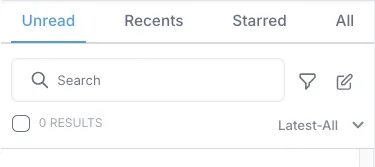
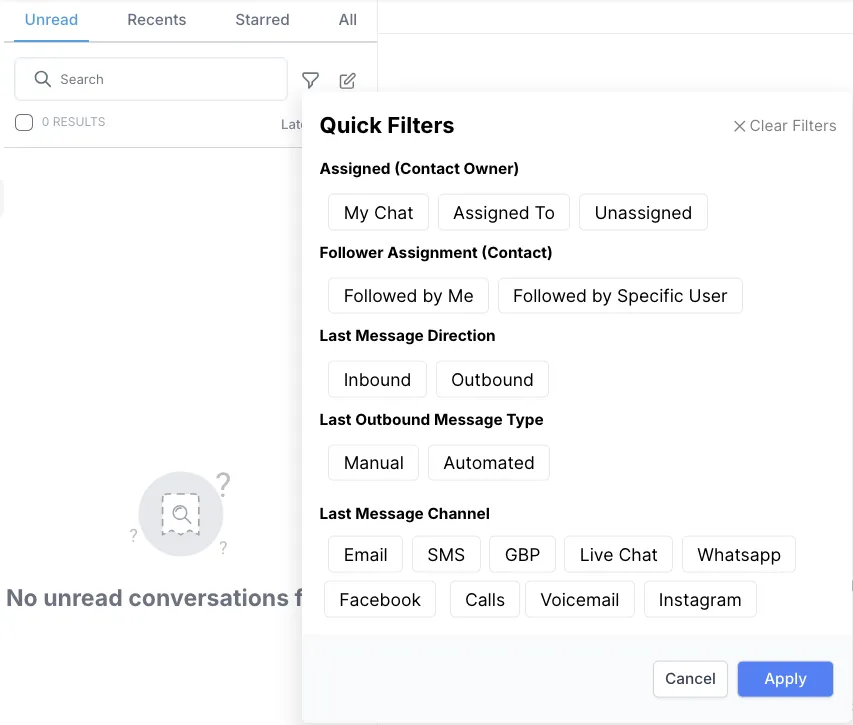
You can also search for specific messages by user or keyword, and filter communications based on factors like:
Assigned contact owner.
Follower assignment.
Message direction.
Type of outbound message.
Communication channel.
2. Center Panel: Communication Thread
The center panel shows the full conversation history with the selected contact, with the oldest messages at the top and the most recent at the bottom.
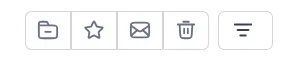
At the top of this panel, you can use icons to:
Archive the conversation.
Star important messages.
Mark as read.
Delete messages.
Filter the conversation view.
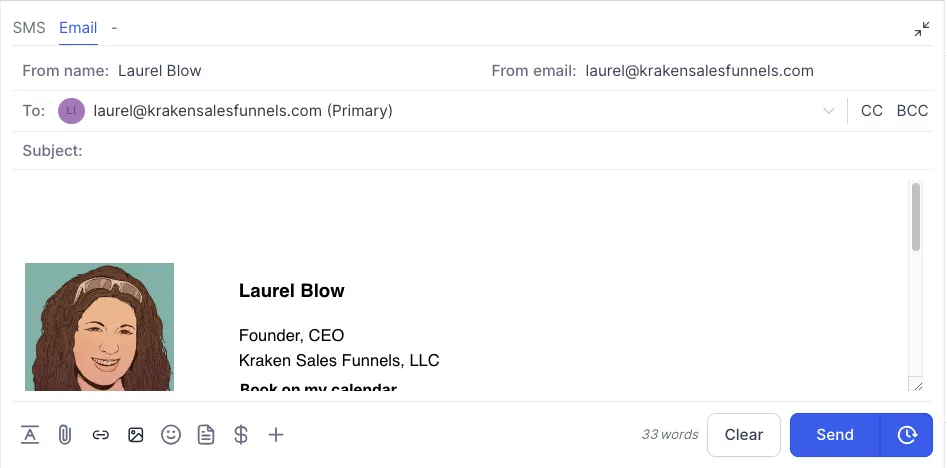
To reply, use the area at the bottom of the panel. You can select from any available communication channels connected to that contact—just toggle to your preferred channel, fill out the fields, and click "Send".
3. Right Panel: Contact Details & Actions
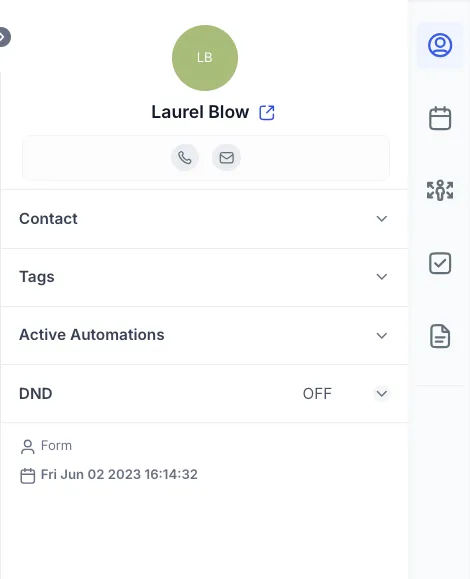
The right panel offers multiple options to manage your contact:
Contact Information: Click the first icon to view and update essential contact details, such as email, phone number, assignee, followers, tags, and DND (Do Not Disturb) status. Any updates are saved automatically.
Appointments: The next icon shows appointments. Here, you can view past appointments and book new ones if needed.
Opportunities: Click the Opportunities icon to see any created opportunities and add new opportunities as they arise.
Tasks: The Tasks icon allows you to view pending tasks or create new tasks to keep track of follow-ups.
Notes: Finally, the Notes icon lets you view past notes about the contact or add new notes for future reference.