Kraken Academy
Learn the ropes, rule the seas
Getting Started: How to Set Up Email 2-Way Sync 📧
Syncing your email with our CRM ensures you can send and receive emails directly from the platform. Here's a step-by-step guide to help you get your email connected.
1. Access Your Profile Settings
Log in to your CRM account.
On the left sidebar, click on Settings (usually found at the bottom).
Select My Profile from the left-hand menu options.
2. Locate the Email Sync Section
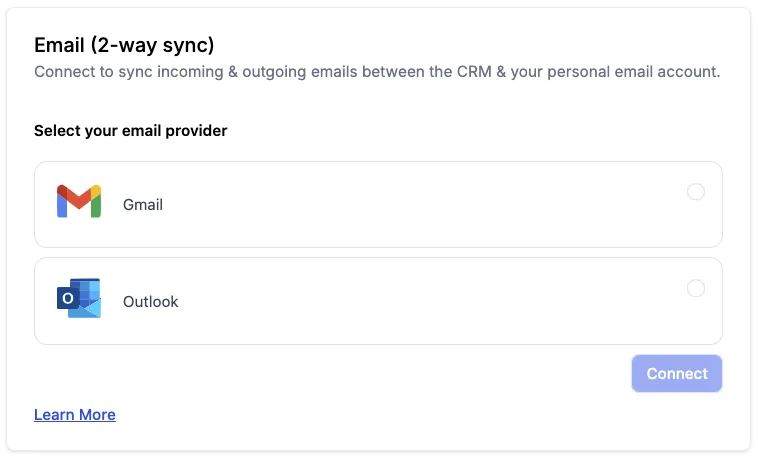
Scroll down to the section labeled Email (2-Way Sync).
Choose your email provider from the available options.
3. Connect Your Email
After selecting your email provider, click the Connect button.
Follow the on-screen prompts to log in to your email account.
After logging in, click Continue to give the necessary permissions for the CRM to connect to your email.
4. Confirm the Sync
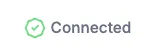
Once connected, your email address will appear with a green checkmark next to it.
You'll see the word Connected to confirm that your email is properly synced.
Need Help?
If you encounter any issues during the process, submit a support ticket for assistance.