Kraken Academy
Learn the ropes, rule the seas
Payments/Documents & Contracts: Sending a Document 📄 📩
Welcome to documents and contracts, where you will manage and oversee all documents and contracts created for your business.
1. Send a Document from Templates
Navigate to Payments, on your left-hand menu.

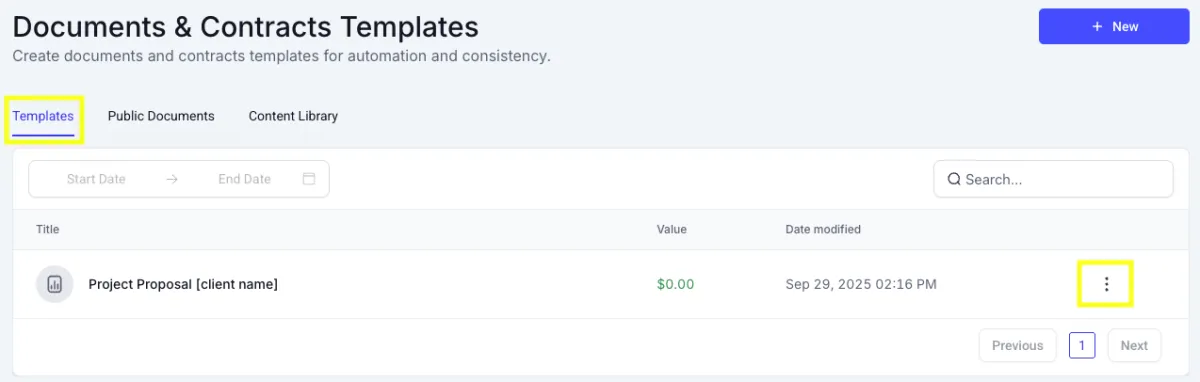
Click on the Documents & Contracts dropdown, then select Templates.

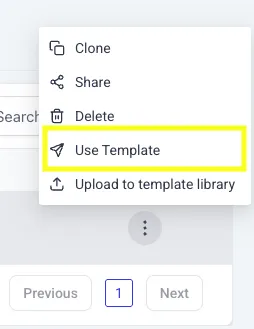
Find the document you wish to send, then click the three dots to the right-hand side of the document. Then select Use Template.
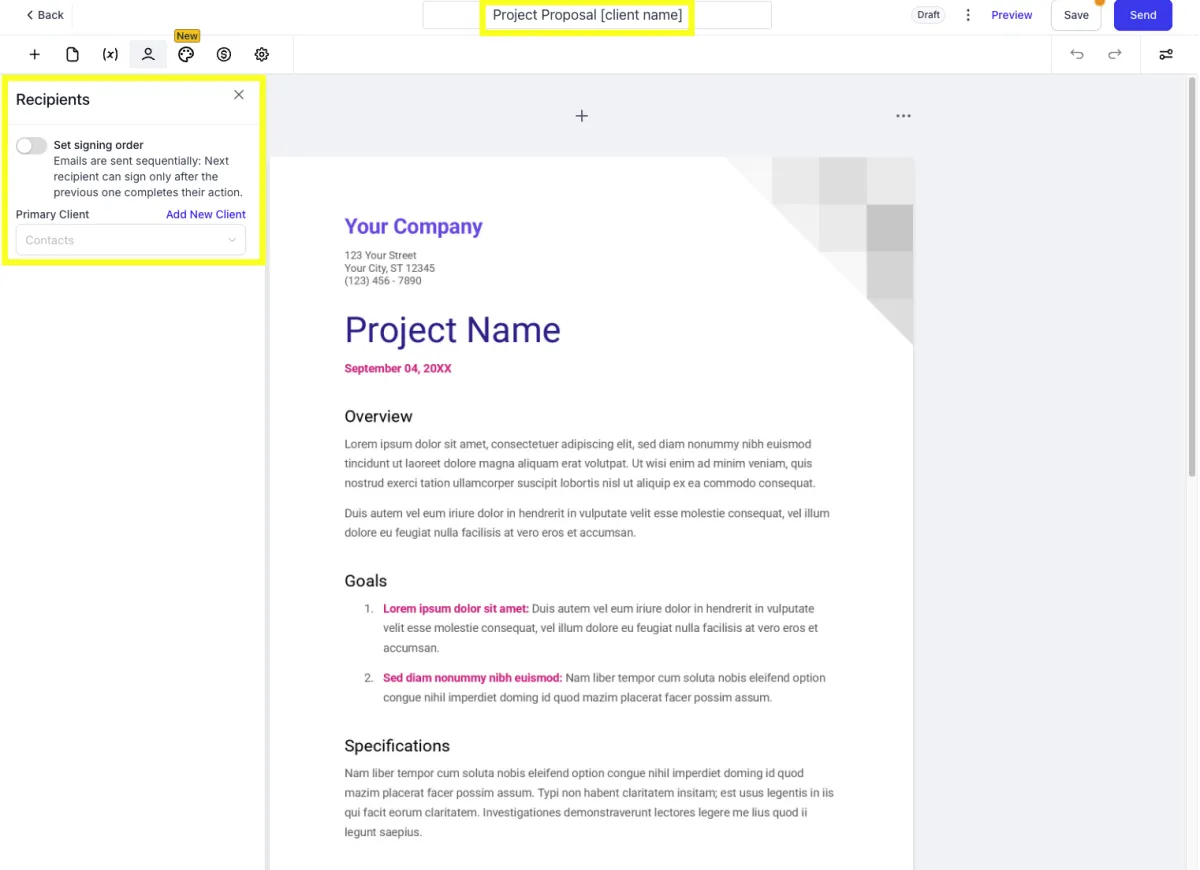
Select the recipient from the Primary Client dropdown, or click Add New Client to create a new contact, then name your document (optional).
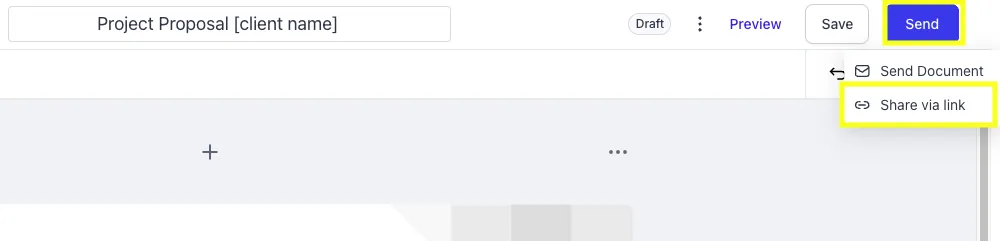
When you have completed the above steps, click the blue Send button, then select Share Via Link.
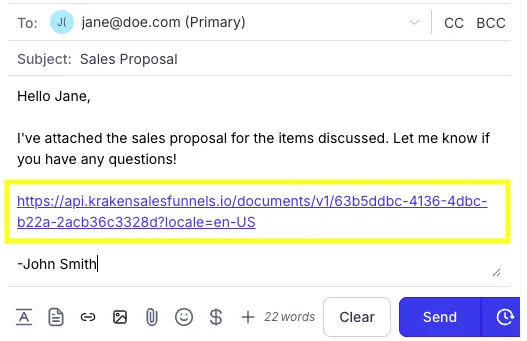
To Share the link, click the blue Generate Links button, then click Copy to the right of the link, then paste this link into your email body, customize your messaging, and send!


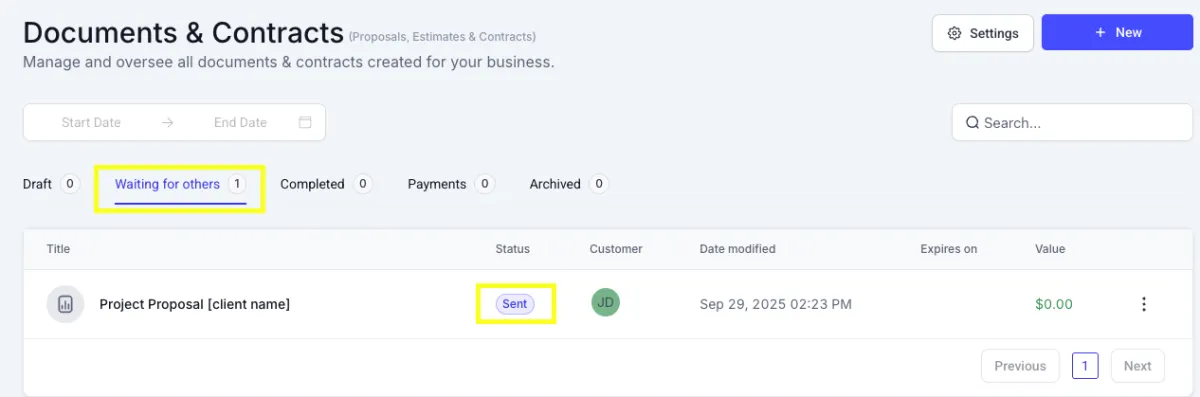
Note: When you generate a link, the document will move to the Waiting for Others stage in the documents pipeline, and the status will be Sent (even though you generated a link, and didn’t send the email directly from the document).
Need Help?
If you encounter any issues during the process, submit a support ticket for assistance.